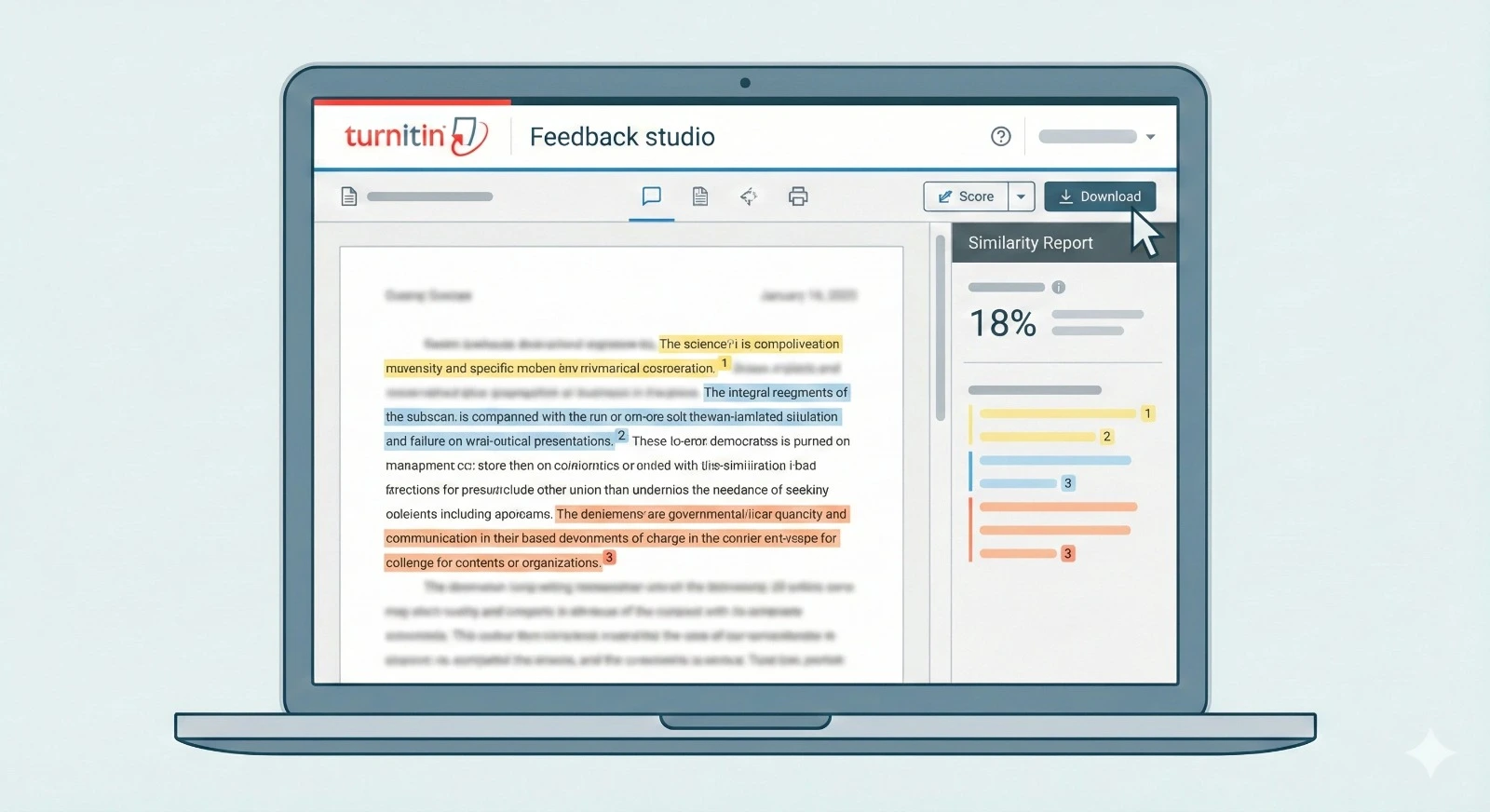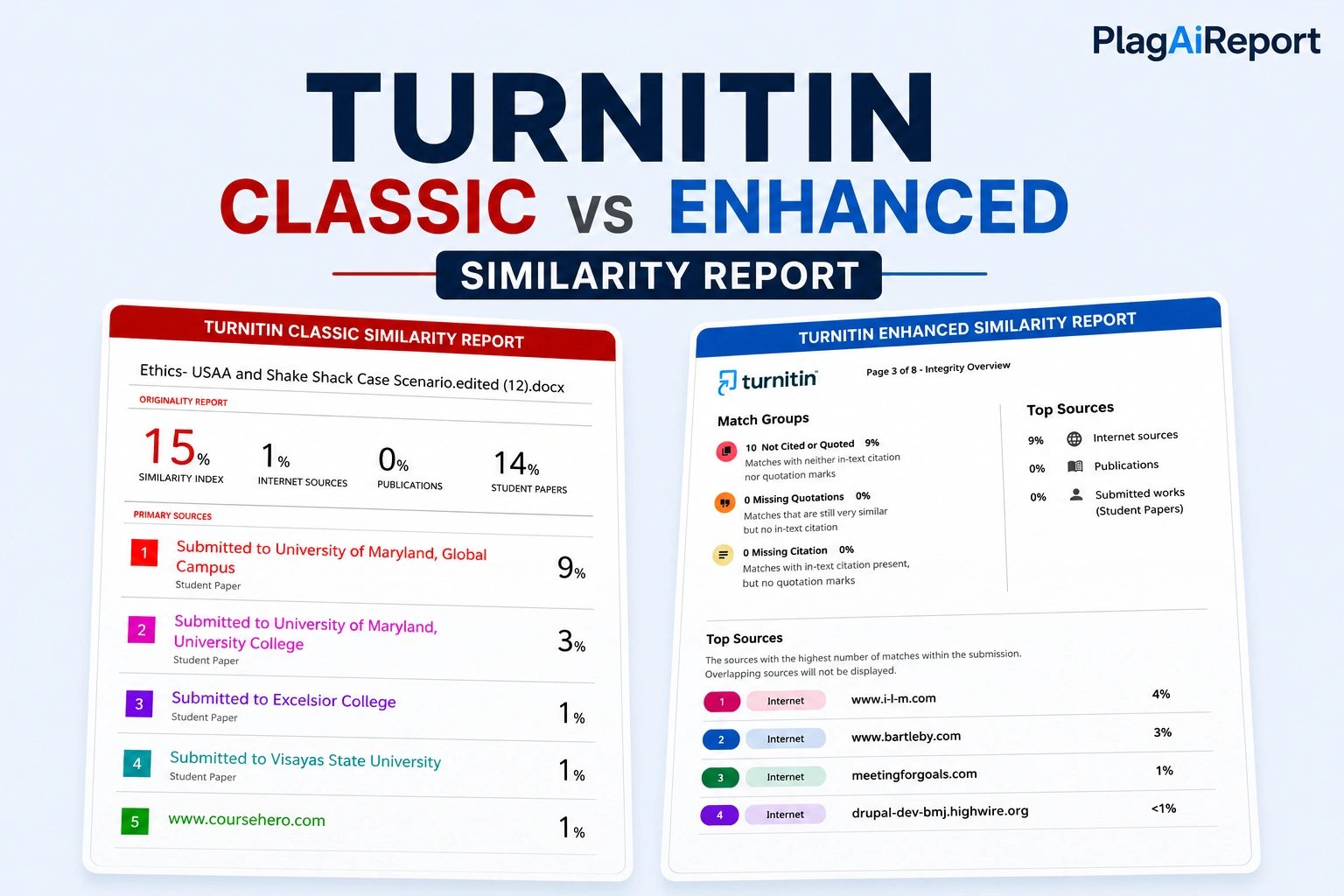
If you have ever compared your Turnitin similarity report to a screenshot you found online or a different report and thought “this doesn’t look anything like mine,” you are not imagining it. Turnitin currently runs two genuinely different report experiences — the Classic Similarity Report and the Enhanced Similarity Report — and depending on which one your institution has enabled, your PDF can look, and even function, quite differently from someone else’s.
This guide explains exactly what separates the two, why the difference exists, and how to tell which version you are looking at.
Why Are There Two Different Turnitin Report Layouts?
According to Turnitin’s own guide on the topic, the Enhanced Similarity Report is a redesigned version of the report interface, built with a new, more intuitive layout and additional categorization features. It is now the automatic default for most eligible accounts, but institutions can control the rollout through an administrator toggle — meaning some universities have switched fully, some are still on Classic, and some run both depending on the assignment type or submission method.
Importantly, Turnitin confirms that the underlying similarity data is identical between the two — the report shows exactly the same matches and the same overall percentage either way. What changes is how that information is organized, categorized, and presented to the reader.
This is why two students with the same instructor, the same assignment, and even a similar similarity score can end up with PDFs that look structurally different. It is also why the submission method matters: Turnitin notes that reports opened through a standard Turnitin assignment typically use the Classic layout, while reports opened through Blackboard integrations or Draft Coach in Microsoft Word tend to use the Enhanced layout.
The Classic Similarity Report
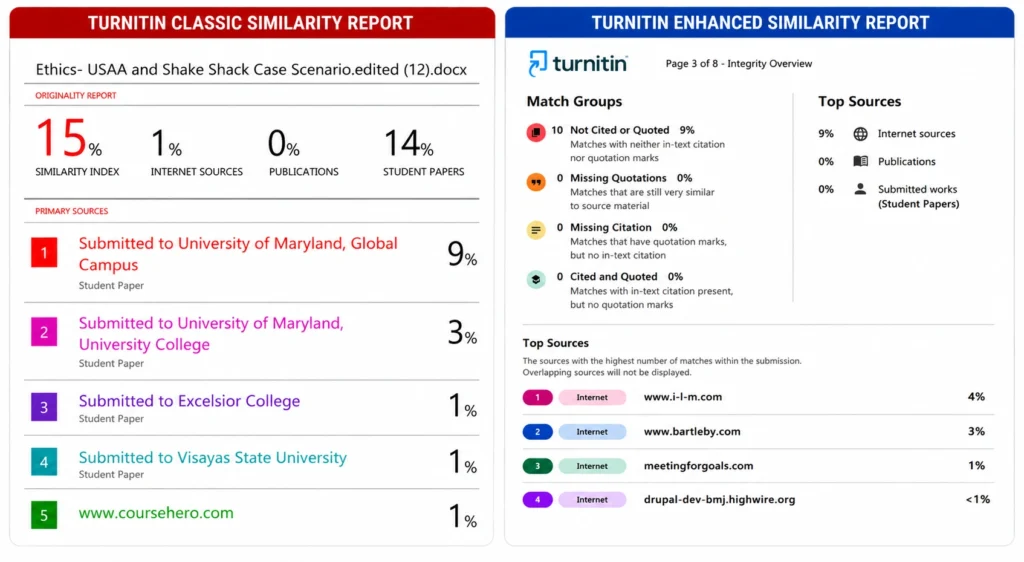
The Classic report is Turnitin’s original layout, and it is still the version most commonly seen in downloaded PDF reports. Its structure includes:
- Superscript numbers within the text. Each matched passage is highlighted and labeled with a small number that corresponds to a source listed separately.
- A separate matched sources page. Rather than viewing source details inline, the Classic report lists all matched sources at the end of the document, each numbered and showing its percentage contribution to the overall score.
- A single overall similarity percentage, broken down by source type — internet sources, publications, and student papers — shown as a summary near the top or end of the report.
- Simple highlighting without categorization. Matches are highlighted in color, but the Classic report does not sort them by whether they were cited, quoted, or neither. The reader has to make that judgment by reviewing each highlight individually against the source list.
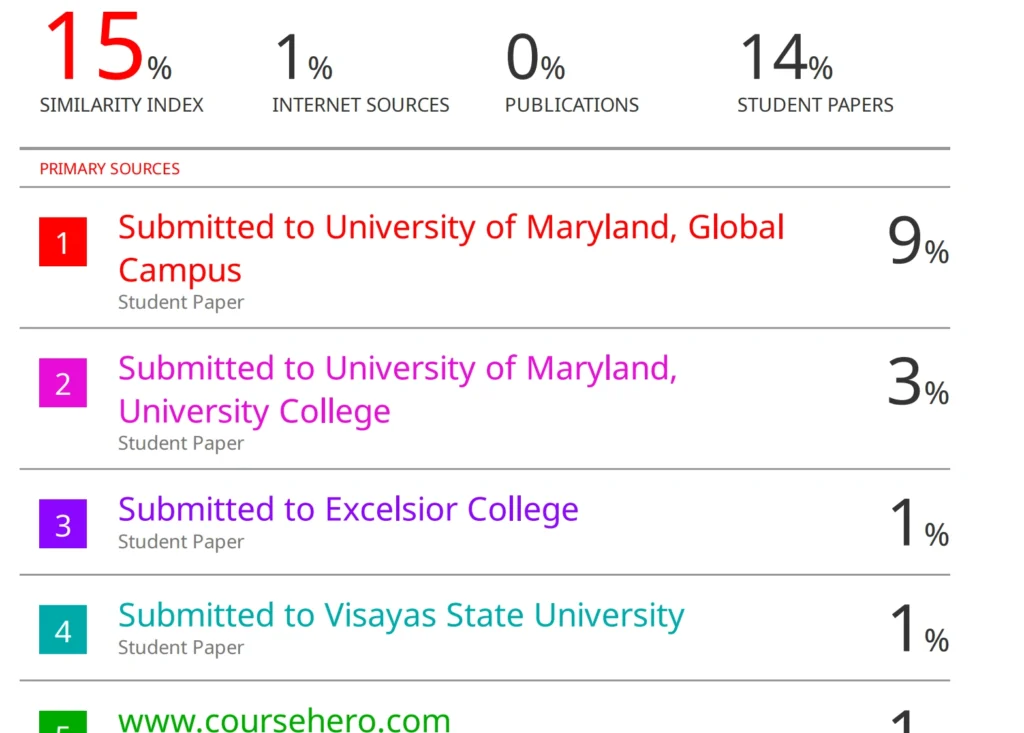
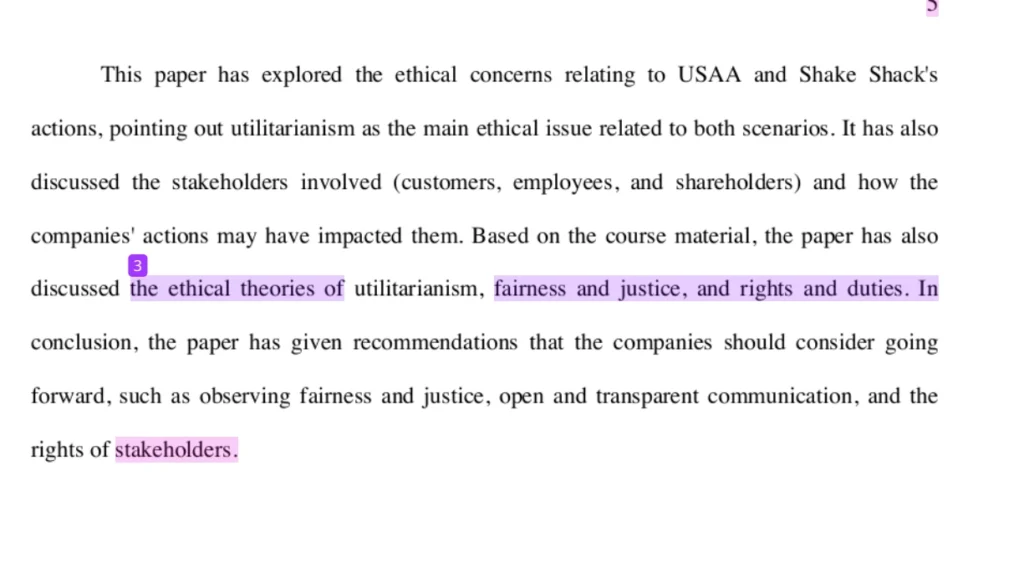
This is the layout used in our own Turnitin similarity report example, which walks through a real 15% similarity report using the Classic structure — including how the matched sources page and highlighted text work together.
The Enhanced Similarity Report
The Enhanced report is Turnitin’s newer interface, and according to Turnitin’s official navigation guide, it introduces several structural changes beyond just visual styling:
- Tab-based navigation. Rather than scrolling through a single continuous document, the Enhanced report organizes information into tabs — Match Groups, Sources, and Flags — allowing the reader to jump directly to the section they need.
- Match Groups categorization. This is the most significant functional difference. Instead of a flat list of highlighted matches, the Enhanced report automatically sorts every match into one of four categories:
- Not Cited or Quoted — text that matches a source with no citation and no quotation marks. This is considered the category most likely to warrant closer review.
- Missing Quotations — text that is cited, but matches a source so exactly that it likely needed quotation marks as well.
- Missing Citation — text that is written as a quotation but has no citation pointing to its source.
- Cited and Quoted — text that is both properly quoted and properly cited. This category typically requires no action.
- Source cards. Selecting a match opens a detailed card showing the source name, the percentage of text matched, the number of matched text blocks, and a link to view the full original source text.
- An integrated Flags Panel. Text manipulation flags — such as replaced characters or hidden text — are built into the same tabbed interface rather than existing as a separate report. For a full explanation of what these flags mean, see the post on integrity flags in Turnitin.
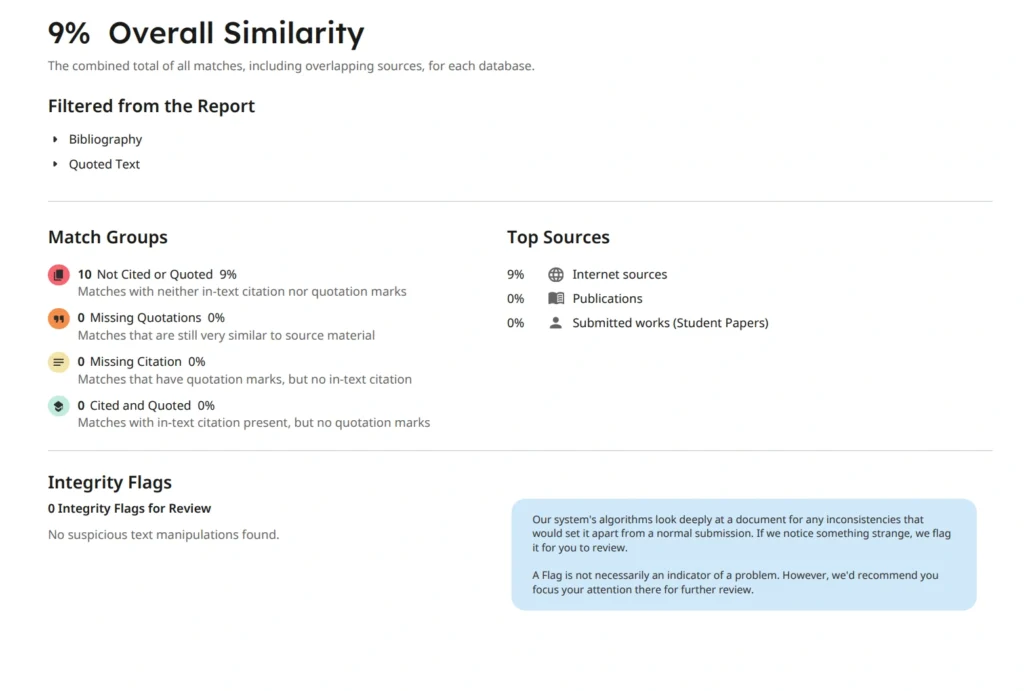
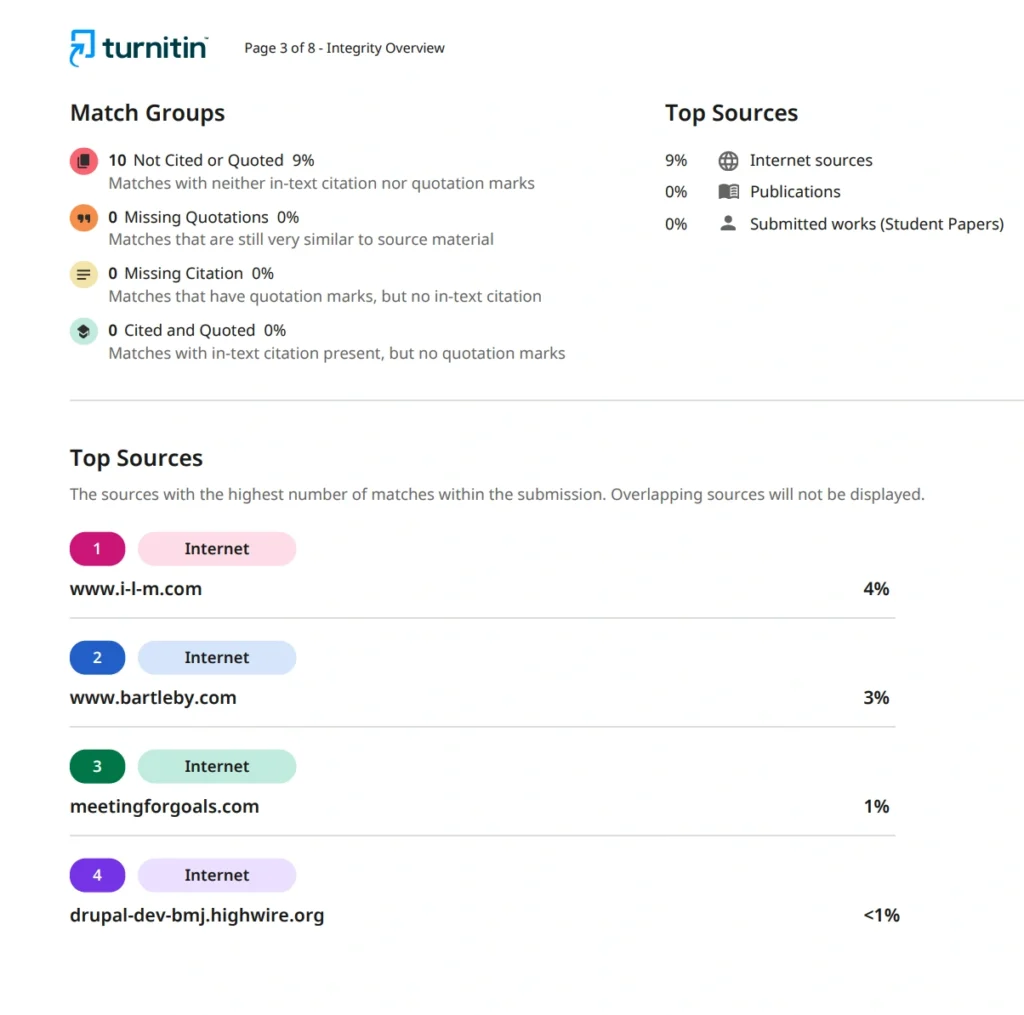
According to Turnitin, the goal of the Match Groups system is to help readers distinguish more quickly between “citation mistakes and deliberate omissions” — in other words, to separate genuine academic misconduct from simple formatting errors, without requiring a manual review of every single highlight.
One limitation worth noting: Turnitin’s own documentation states that Match Groups technology is currently trained only on English-language content, and citation recognition is optimized for APA, MLA, Turabian, and IEEE numbered citation formats. Citations in other formats, or citations placed unusually far from the matched text, may not be recognized correctly — meaning a properly cited passage could occasionally be miscategorized as “Not Cited or Quoted.” This is a good reason not to treat any single match category as a final verdict without reviewing the actual text.
You can view or download a full PDF of an Enhanced Similarity Report example below.
Please note that we never use real client documents anywhere on this site. Protecting the privacy of everyone who orders a Turnitin report from us is a strict policy — submitted papers are never shared, published, or reused in any form. The Enhanced Similarity Report example above was created purely for demonstration purposes and does not belong to any real student or client.
Classic vs Enhanced: A Side-by-Side Comparison
| Classic Report | Enhanced Report | |
|---|---|---|
| Navigation | Single scrolling document | Tab-based (Match Groups, Sources, Flags) |
| Match display | Highlighted with superscript numbers | Highlighted and color-coded by category |
| Source details | Separate matched sources page | Interactive source cards |
| Match categorization | None — matches are not sorted | Four categories based on citation/quotation status |
| Flags | Separate Flags tab | Integrated Flags Panel within the same interface |
| Underlying data | Same similarity score and matches | Same similarity score and matches |
| Where it typically appears | Standard Turnitin assignment inbox | Blackboard integrations, Draft Coach, newer institutional setups |
How to Tell Which Version You Have
The simplest way to check is to look at the report’s layout directly. If your report shows a single continuous document with numbered highlights and a separate source list, you are looking at the Classic report. If your report opens with tabs at the top labeled Match Groups, Sources, and Flags, you are looking at the Enhanced report.
If you are unsure, Turnitin’s own comparison guide includes visual references for students to confirm which version they are viewing. Institutions can also confirm which version is active for a given assignment, since the setting is controlled at the administrator level and can vary between courses.
Does It Matter Which Version You Get?
Functionally, no — the similarity percentage, the matched text, and the sources behind it are identical regardless of which layout displays them. What differs is how easy the report is to interpret and how much manual review is required to reach the same conclusions.
The Enhanced report’s Match Groups feature does more of the interpretive work automatically, which can make it faster to spot patterns — for example, quickly seeing that most of your similarity falls under “Cited and Quoted” rather than “Not Cited or Quoted” gives you an immediate sense of whether your score reflects legitimate academic writing or content that needs attention. For guidance on interpreting either version well, see the post on how to read and understand a Turnitin similarity report.
Conclusion
Turnitin currently operates two distinct report layouts — Classic and Enhanced — and which one you see depends on your institution’s settings and how the assignment was submitted. The Classic report presents matches as numbered highlights linked to a separate source list. The Enhanced report organizes the same information into tabs, with matches automatically sorted into four categories based on citation and quotation status.
The underlying similarity data never changes between the two — only the presentation does. If your report looks different from an example you found online, the most likely explanation is simply that you are looking at a different version of the same tool, not that anything is wrong with your submission.
For a full walkthrough of a real Classic report example, see our Turnitin similarity report example.
Frequently Asked Questions (FAQ)
Turnitin runs two different report layouts — Classic and Enhanced. The Classic report uses numbered highlights with a separate matched sources page, while the Enhanced report uses tab-based navigation with matches sorted into four citation-based categories. Both show identical underlying similarity data; only the presentation differs.
No. Both report versions display the exact same similarity score and the same matched text. The Enhanced report simply organizes that information differently, using automatic categorization to help identify which matches are cited and quoted correctly versus which are not.
If your report is a single scrolling document with small numbered highlights and a separate source list, you have the Classic report. If it opens with tabs labeled Match Groups, Sources, and Flags at the top, you have the Enhanced report.
Match Groups automatically sort every matched passage into one of four categories: Not Cited or Quoted, Missing Quotations, Missing Citation, and Cited and Quoted. This helps readers quickly distinguish between properly attributed content and content that may require closer review.
Yes, occasionally. Turnitin’s citation recognition is trained primarily on APA, MLA, Turabian, and IEEE numbered citation formats and works only for English-language submissions. Citations in other formats, or those placed unusually far from the matched text, may not be recognized correctly, which can result in an occasional miscategorization.
This depends entirely on your institution’s Turnitin configuration. Some universities have moved fully to the Enhanced report, some remain on Classic, and some use different versions depending on how the assignment is submitted — for example, through a standard Turnitin assignment inbox versus a Blackboard integration.
Was this helpful?