Most students only see their Turnitin report after they have already submitted their final paper. By that point, the similarity score is locked in, the instructor can see it, and there is nothing left to do but wait. Turnitin Draft Coach is designed to change that experience entirely — giving students access to similarity checking, citation checking, and grammar feedback while they are still writing, before a single word reaches the instructor.
This guide covers exactly what Draft Coach is, what it can and cannot do, and how students can access and use it inside Google Docs and Microsoft Word Online.
What Is Turnitin Draft Coach?
Turnitin Draft Coach is an add-on tool that integrates directly into Google Docs and Microsoft Word Online. According to Turnitin’s official FAQ, it gives students access to three core features while they are still drafting an assignment:
- Similarity Check — compares the current draft against Turnitin’s database and produces a similarity report
- Citations Check — scans the paper for citations that have no matching reference in the bibliography, and references that have no corresponding in-text citation
- Grammar Guide — flags grammar, structure, usage, and mechanics errors with explanations of how to fix them
The key distinction between Draft Coach and Turnitin’s standard submission process is that Draft Coach is a formative tool — it is meant to guide improvement during writing, not to assess a final submission. Reports generated through Draft Coach are not visible to instructors, are not stored in Turnitin’s repository, and do not match against a student’s final submission when it is eventually submitted through the official channel.
In practical terms: using Draft Coach to check a paper in progress will not penalize the student when they submit the final version.
What Draft Coach Does Not Do
Understanding the limits of Draft Coach is just as important as knowing what it offers.
- Instructors cannot see Draft Coach results. There is no way for a student to share their Draft Coach report with a teacher through the tool itself. The reports are private to the student only.
- Draft Coach does not submit papers to the Turnitin repository. Running a similarity check through Draft Coach does not store the paper in Turnitin’s student paper database. This means it will not show up as a match when the final version is submitted.
- It is not available on the desktop version of Microsoft Word. Draft Coach only works in Word Online (accessed through a browser). The desktop application installed on a computer does not support it.
- It does not produce the same report as an official submission. The Draft Coach similarity report is a preview — useful for identifying issues and guiding revisions — but it is a separate product from the full Turnitin Similarity Report an instructor reviews. For a look at what the official report shows, see the Turnitin similarity report example.
- It cannot catch every citation problem. The citations check identifies mismatches between in-text citations and reference list entries. It does not catch sources that have neither a citation nor a reference — those would only appear as matches in the similarity check.
Who Can Access Turnitin Draft Coach?
Access to Draft Coach is institution-dependent. It is not a free public tool and cannot be installed independently by individual students. According to Turnitin’s official documentation, Draft Coach must first be configured by an institution’s Turnitin administrator, and it is license dependent — meaning the student’s school must have a Turnitin subscription that includes Draft Coach.
If a student’s institution has enabled it, access is automatic through their institutional Google or Microsoft credentials. If it does not appear when they follow the installation steps below, the most likely reason is that the institution has not enabled it, or has enabled it for one platform (Google Docs or Word Online) but not the other.
The best way to confirm availability is to check with a librarian, academic skills team, or course instructor.
How to Access Draft Coach in Google Docs
Once Draft Coach has been enabled by the institution, these are the steps to add and use it in Google Docs:
- Open a Google Doc using the institutional Google account (the one linked to the school’s domain).
- From the top menu, select Add-ons → Turnitin for Google Docs → Turnitin Originality.
- The Draft Coach panel will open on the right-hand side of the document.
- If the add-on does not appear, refresh the page and try again. If it still does not appear after refreshing, Draft Coach may not have been enabled for that institution.
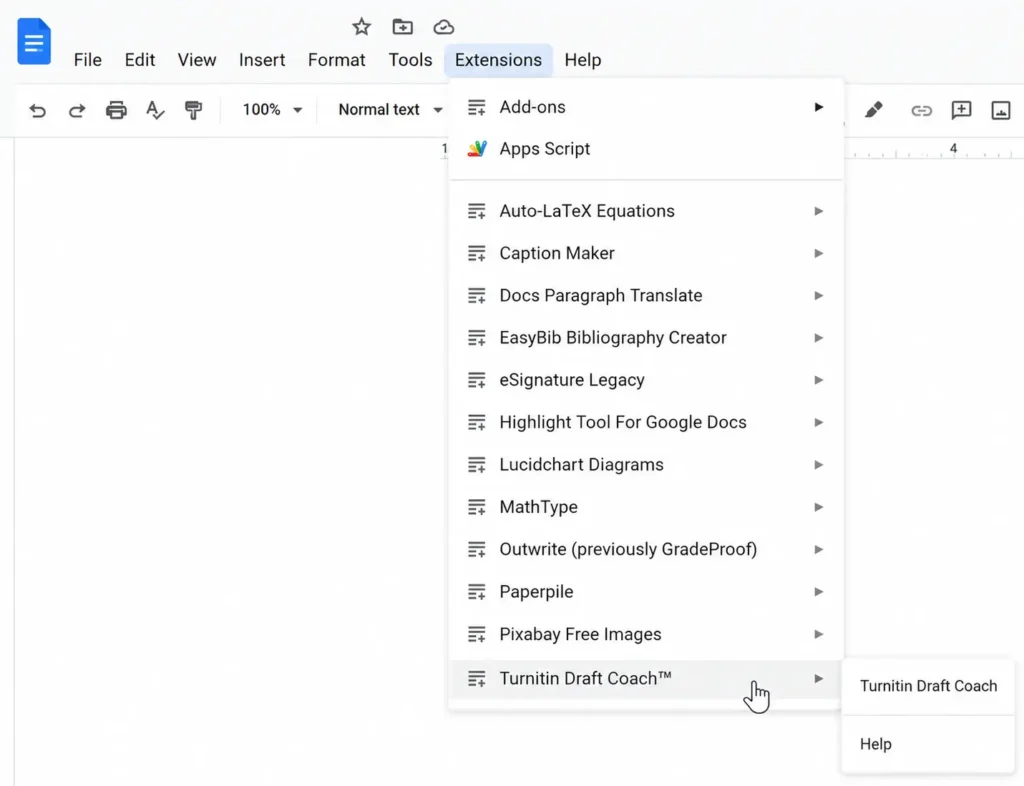
From the side panel, students can navigate between three tabs — Similarity, Citations, and Grammar — and run each check independently.
How to Access Draft Coach in Microsoft Word Online
For institutions that have configured Draft Coach for Word Online:
- Open a document in Microsoft Word Online — accessed through a browser via Microsoft 365, not the desktop app.
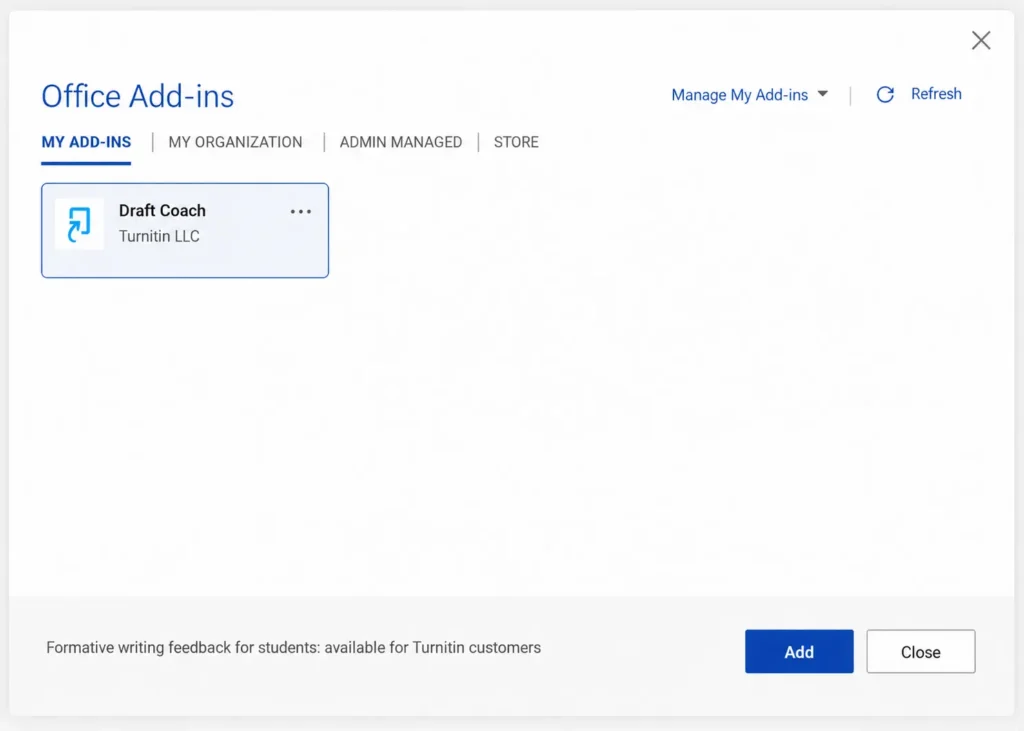
- Select Insert → Add-ins.
- From the Office Add-ins modal, select Admin Managed → Turnitin Draft Coach.
- Once installed, Draft Coach appears under the Turnitin option in the Word Online toolbar for all future documents — the installation step only needs to be completed once.
If the add-in does not appear under Admin Managed, it may not have been set up for that institution. Students should contact their instructor or IT support team for guidance.
How Each Draft Coach Feature Works
Similarity Check
The similarity check compares the current draft against the same database Turnitin uses for official submissions — billions of web pages, academic journals and publications, and previously submitted student papers. Matches are flagged in the side panel with the source identified.
Students are given a total of three similarity checks per document. This limit is intentional — it encourages students to revise meaningfully between checks rather than running repeated small checks. Running a similarity check does not consume one of those three uses until the student confirms they want to proceed.
The results show an overall similarity percentage and a list of matched sources. Selecting a specific match highlights the relevant text in the document and shows the matched source in more detail. Selecting View Full Report opens an interactive version of the similarity report in a new tab, where students can apply exclusion filters (such as excluding bibliography or quoted text) — the same filters available in the full Turnitin report.
One important note: matches in a Draft Coach report are normal. As Turnitin’s own documentation states, it is expected to see some matches in a well-referenced paper. A similarity result in Draft Coach follows the same interpretation principles as an official report — the source of the matches matters far more than the percentage. For guidance on interpreting those results, see the post on what a good Turnitin similarity percentage looks like.
Citations Check
The citations check scans the paper for two specific problems:
- Citation with no reference: An in-text citation appears in the body of the paper but has no corresponding entry in the bibliography.
- Reference with no citation: A source appears in the bibliography but is never cited in the body text.
Students can run the citations check an unlimited number of times — there is no cap. This makes it practical to run a check, fix any flagged issues, and run it again immediately. The report displays the total number of citations, the total number of references, and which citation style was detected. A healthy paper will always have a citation count equal to or greater than the reference count.
The citations check does not identify sources that have neither a citation nor a reference — those cases, where a student has copied content without acknowledging it at all, would appear in the similarity check as unattributed matches instead.
Grammar Guide
The Grammar Guide flags errors in grammar, structure, usage, and mechanics. Unlike many grammar checkers, it does not auto-correct — it highlights the issue and provides a written explanation of what the problem is and how to address it. This is consistent with Draft Coach’s broader philosophy: it is a learning tool designed to build student skills, not a tool that simply fixes problems silently.
Like the citations check, the Grammar Guide can be run an unlimited number of times.
Can Students Use Draft Coach Without a University Account?
No. Draft Coach requires an institutional Turnitin license. Students who do not have access to Draft Coach through their institution — or who want to check a paper outside of their institution’s system — cannot use it independently.
For students in this situation, the practical alternative is to get a full Turnitin report through an independent service before submitting to their institution. This gives access to the same database and the same similarity scoring that the official submission would produce. See the guide on how to get a Turnitin report without a university login for options.
Conclusion
Turnitin Draft Coach is one of the most genuinely useful tools Turnitin offers students, precisely because it moves the feedback earlier in the writing process. Rather than discovering a high similarity score or a missing citation after submission, Draft Coach gives students the chance to identify and fix those issues while there is still time to act on them.
The key facts to remember: it is institution-dependent, requires Word Online or Google Docs (not the desktop app), limits similarity checks to three per document, and produces reports that are private to the student and never stored in Turnitin’s repository. Used consistently across the drafting process, it is a meaningful advantage for any student who has access to it.
For students who want to understand what their final Turnitin report will look like before submitting, the Turnitin similarity report example and AI detection report example are worth reviewing alongside Draft Coach results.
Frequently Asked Questions (FAQ)
Turnitin Draft Coach is an add-on for Google Docs and Microsoft Word Online that gives students access to similarity checking, citation checking, and grammar feedback while they are still writing. Reports are private to the student and are not shared with instructors or stored in Turnitin’s database.
Draft Coach is free for students to use if their institution has enabled it — but it is not publicly available to individual students without an institutional Turnitin license. Access requires that a school’s Turnitin administrator has configured the add-on for the institution’s accounts.
No. Running a similarity check through Draft Coach does not submit the paper to Turnitin’s repository and does not create a record that would match against the final official submission. Students can use Draft Coach freely without any risk of it affecting their submission score.
Students can run a similarity check a total of three times per document. The citations check and grammar guide can be run an unlimited number of times.
No. Draft Coach is only available in Microsoft Word Online, accessed through a browser via Microsoft 365. The desktop application installed on a computer does not support it.
A standard Turnitin submission creates an official report visible to the instructor, stores the paper in Turnitin’s repository, and is part of the formal assessment process. Draft Coach creates a private, formative report visible only to the student, does not store the paper, and is designed purely to guide improvement before final submission.
Was this helpful?