You open your Turnitin similarity report, and everything seems normal — until you notice a small red icon near the top of the report. It is not the similarity score. It is not the AI writing indicator. It is something else entirely, and it has a number next to it. That icon is an integrity flag, and it is telling your instructor something specific about your submission.
Most students are familiar with the similarity percentage — that number that shows how much of their paper matches existing sources. Integrity flags are different. They do not measure how much of your text overlaps with other documents. Instead, they signal that Turnitin detected a possible text manipulation inside the document itself. Understanding what these flags mean, why they appear, and what happens next is essential for any student navigating academic integrity.
What Are Integrity Flags in Turnitin?
Integrity flags are alerts that Turnitin generates when its algorithm detects unusual formatting or character inconsistencies within a submitted document. According to Turnitin’s official guide, the system scans any document containing at least 500 characters (excluding spaces) for inconsistencies that would set it apart from a normal submission.
The key distinction to understand is this: integrity flags are separate from the similarity score. A paper can have a 5% similarity score and still trigger a flag. A paper with a 40% similarity score may have no flags at all. The two indicators measure completely different things.
Turnitin itself is careful to state that a flag is not automatically proof of wrongdoing. It is a signal that something in the document warrants a closer look. That said, the types of text manipulations that commonly trigger flags are techniques that are deliberately used to bypass similarity detection — which means flags carry serious weight when an instructor reviews them.
| Feature | Similarity Score | Integrity Flag |
|---|---|---|
| Measures matching text | ✓ | ✗ |
| Measures document manipulation | ✗ | ✓ |
| Percentage shown | ✓ | ✗ |
| Indicates plagiarism | Not necessarily | Not necessarily |
| Requires instructor review | ✓ | ✓ |
Where Do You See Integrity Flags in a Turnitin Report?
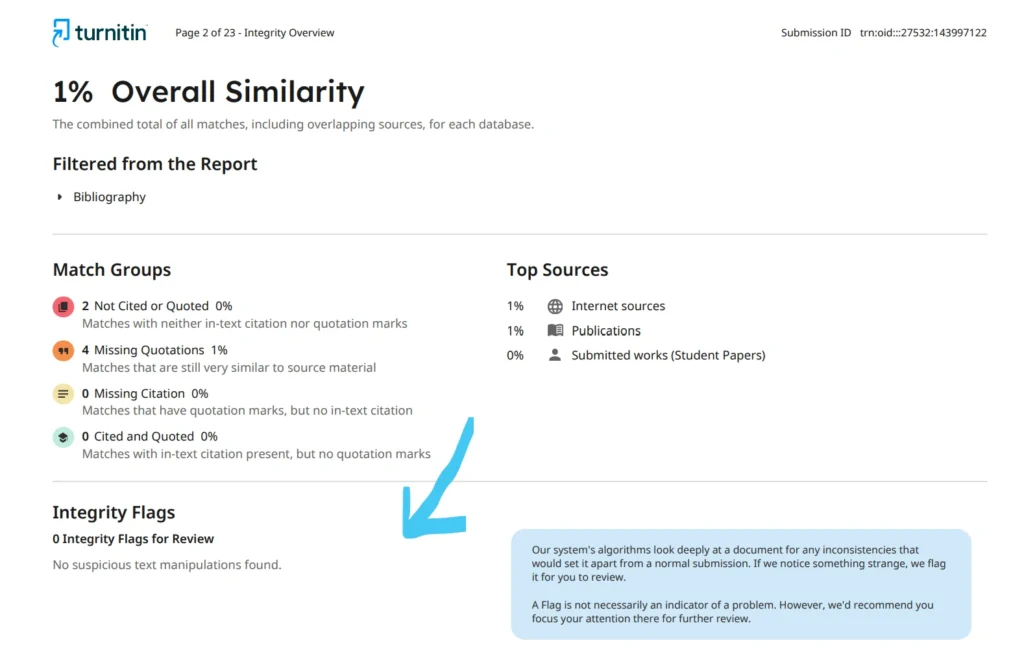
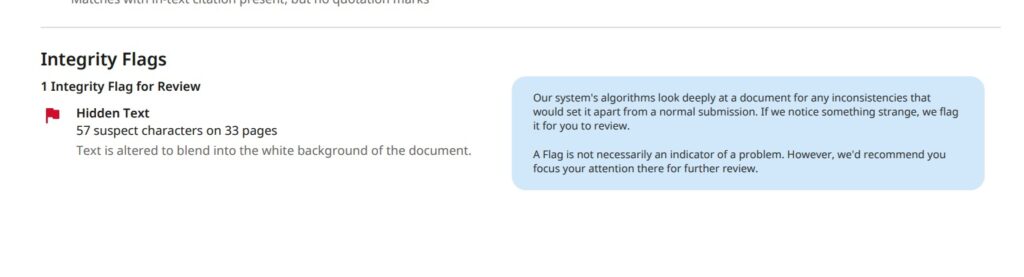
In the enhanced Similarity Report, integrity flags appear under a dedicated Flags tab at the top of the report, directly above the submission text.
Here is how to locate and read them:
- The Flags tab displays a number next to it indicating how many flag types were detected. A “1” means one flag type was found; a “2” means both flag types were triggered.
- Clicking the Flags tab opens the Integrity Flags for Review panel on the right-hand side of the screen.
- Inside that panel, each flag appears as a card. Selecting a card expands it to show more detail.
- In the submission text itself, red flag icons with numbers appear next to the affected passages, and red boxes surround all suspicious text connected to that flag.
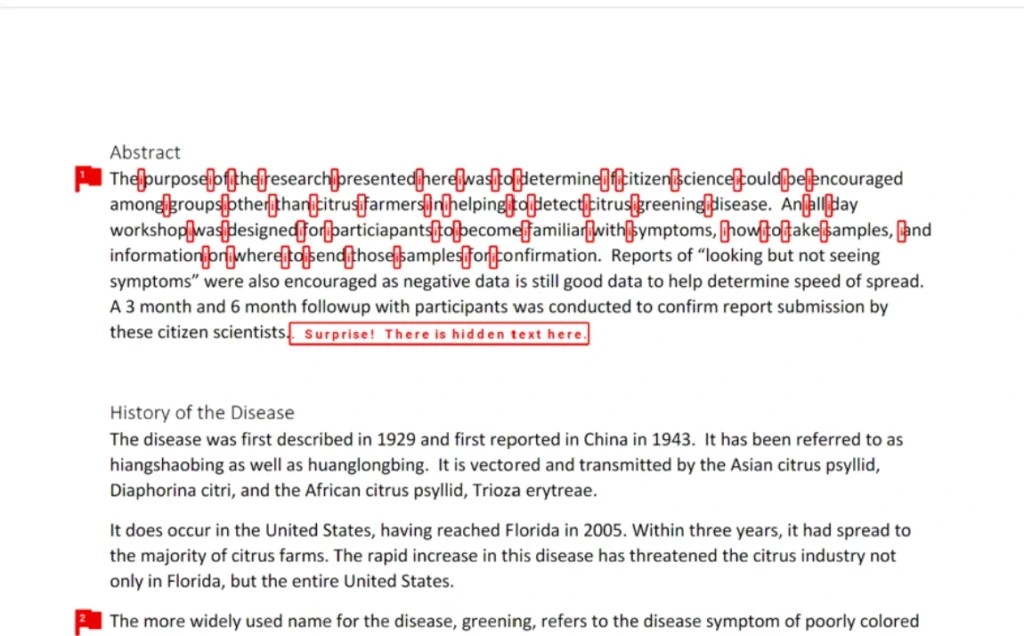
The older version of Turnitin’s Feedback Studio displayed flags in the Insight Panel on the right-hand sidebar rather than a dedicated tab. The functionality is the same — the layout is slightly different depending on which version of the report your institution uses. If you are using the standard Similarity Report, you can learn how to read it here.
The Two Types of Integrity Flags — Explained
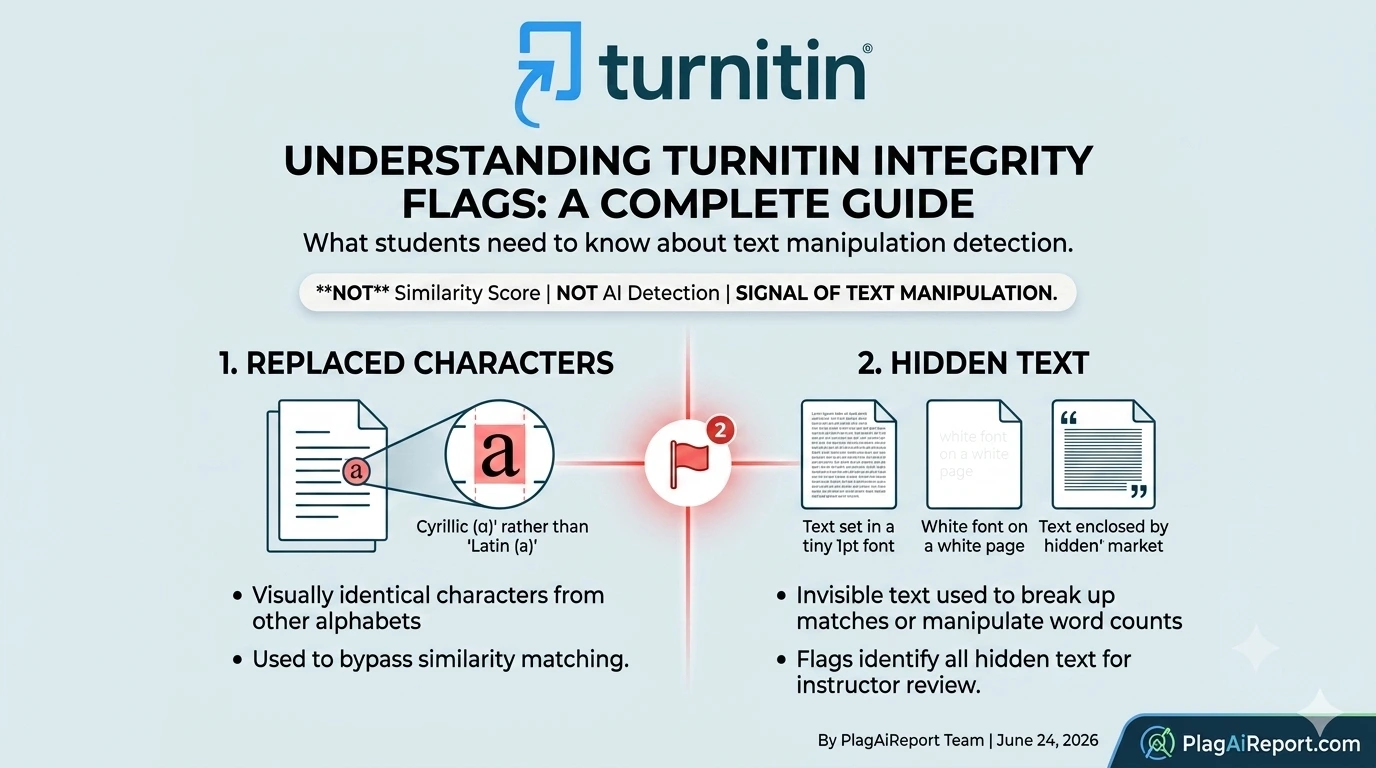
Currently, Turnitin detects two specific types of text manipulation that trigger integrity flags: replaced characters and hidden text. Both are techniques that have circulated alleged “hacks” to beat Turnitin’s similarity detection.
Flag Type 1: Replaced Characters
Some characters in different writing systems look visually identical to Latin letters, but they are technically different characters at the code level. The most common example is a Cyrillic “а” (used in Russian) versus a Latin “a.” To the human eye, they look the same. To a computer algorithm, they are entirely different characters.
When a similarity-matching algorithm encounters a Cyrillic “а” in a submission that is otherwise written in English, it may fail to recognize that word as matching an English source — because at the character level, the word is different.
This technique requires deliberate effort. A student would need to install a foreign-language keyboard and manually replace individual characters throughout their document — which is precisely why Turnitin treats it as an indicator of intentional misconduct rather than a formatting accident.
Turnitin’s algorithm automatically identifies these substituted characters. When the flag is triggered, the report highlights exactly which characters were replaced and where they appear in the submission. The system also swaps them back to their Latin equivalents before running the similarity check, so replaced characters do not successfully lower the similarity score.
Flag Type 2: Hidden Text
Hidden text refers to content in a document that is present in the file but invisible to the naked eye. The most common methods include:
- White font on a white background: Text is typed in white color on a white page background, making it invisible when the document is read or printed. This text is still present in the file and can influence the word count or break up strings of plagiarized content so the algorithm does not recognize them as continuous matches.
- Tiny font size: Characters are inserted between words or letters at an extremely small font size (such as 1pt), breaking up phrases so they are not detected as full matches.
- Hidden quotation marks: Invisible quotation marks placed around plagiarized content can manipulate how Turnitin’s “Exclude Quotes” filter works — causing plagiarized text to be excluded from the similarity check when an instructor applies that filter.
Turnitin’s Flags panel highlights all instances of hidden text so that instructors can see exactly what was concealed and where.
What Happens When Turnitin Flags Your Paper?
When a flag is detected, your instructor can see:
- How many instances of each flag type appear in the document
- Exactly where those instances are located (highlighted in red within the submission)
- Which specific characters or text segments triggered the flag
According to Turnitin’s own blog, the Flags panel was designed to serve a specific purpose: to separate the conversation about intentional misconduct from the routine, formative conversation about text similarity. In other words, similarity discussions are about learning to cite properly. Flags discussions are about intent.
This is significant. An instructor who sees a flag on your paper is likely to ask about it directly, because — as Turnitin itself notes — performing these text manipulations is rarely accidental. The outcome depends heavily on your institution’s academic integrity policy and the context surrounding your submission.
It is also worth noting that a flag does not necessarily mean your submission will be referred to a formal misconduct panel. Many instructors will first speak with the student to understand what happened. Institutions that take a proportionate, evidence-based approach to academic integrity will treat the flag as one data point in a broader picture — not an automatic conviction. For more on how Turnitin’s accuracy has been questioned in misconduct cases, see our article on false positives in AI detection.
What to Do If Your Paper Has an Integrity Flag
If you open your report and see a flag, here is the practical advice that matters:
- Stay calm and do not alter the original file. Editing your submission in response to a flag can make things look worse, not better.
- Check your submission file. Open the document you submitted and look at the flagged areas. Is there any formatting issue that could explain the flag — for example, a copy-paste from a source that carried unusual formatting, or a PDF export that may have introduced artifacts?
- Gather your drafts and working materials. Any record of your writing process — previous drafts, outlines, research notes, browser history — is valuable if you need to demonstrate how the work developed.
- Contact your instructor proactively. Reaching out before you are called in demonstrates confidence and good faith. Explain what you found in the report and offer your draft history as context.
- Understand your institution’s policy. Some universities will not pursue formal proceedings based on a flag alone. Knowing your rights and your institution’s process will help you respond appropriately.
A flag does not define the outcome. What matters is what happens in the conversation that follows.
Conclusion
Integrity flags in Turnitin are distinct from similarity scores and AI writing indicators. They specifically detect two forms of text manipulation — replaced characters and hidden text — that are primarily associated with deliberate attempts to bypass Turnitin’s matching algorithms. Turnitin’s algorithm will catch these even when the manipulation appears visually invisible to a reader.
That said, false triggers can occur, particularly with certain PDF conversions or file formatting artifacts. Because of this, Turnitin positions flags as items for review rather than automatic evidence of misconduct.
If your paper is flagged, your best approach is to understand exactly what type of flag was raised, review your submission carefully, and communicate with your instructor early. A clear explanation and strong draft history go a long way.
To understand the other key elements of your Turnitin report, you may also want to read our full Turnitin Similarity Report Example and our guide on why a high similarity score is not always plagiarism.
Frequently Asked Questions (FAQ)
An integrity flag is an alert generated when Turnitin detects a text manipulation in a submitted document — specifically replaced characters from a different alphabet or hidden text. It is separate from the similarity score and indicates something in the document’s formatting or character encoding requires review.
In the enhanced Similarity Report, flags appear under the dedicated Flags tab at the top of the report. Clicking the tab opens the Integrity Flags for Review panel on the right side, where each flag type is listed with the number of instances found.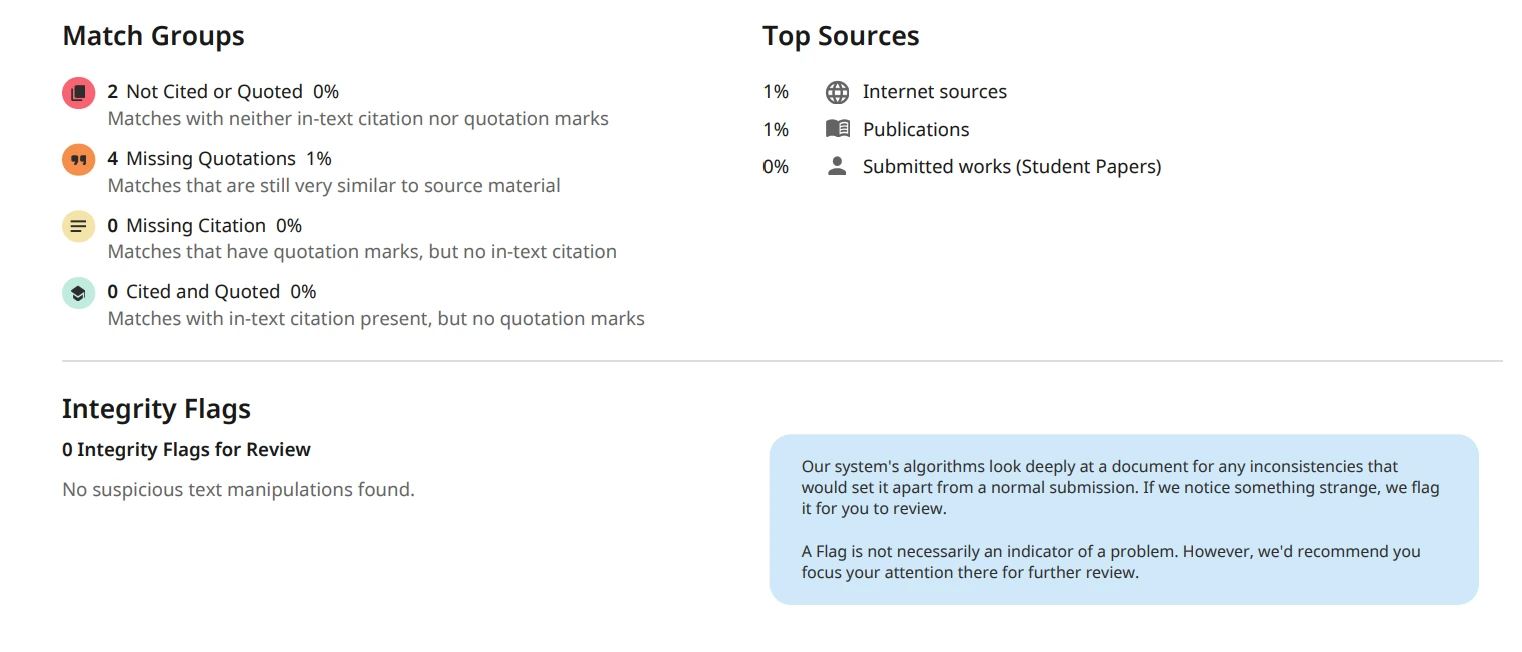
Not automatically. Turnitin describes flags as items for review, not confirmed violations. A flag prompts your instructor to look more closely at your submission. The outcome depends on your institution’s academic integrity policy and the broader context of your work.
Yes. In some cases, flags have been triggered by PDF conversion artifacts or unusual formatting carried over from copy-pasting. This is why flags are treated as a signal for further review rather than definitive proof of misconduct.
The two current flag types are replaced characters (characters from a different alphabet substituted for Latin letters to confuse the similarity algorithm) and hidden text (text that is invisible on the page due to white font color, tiny font size, or hidden punctuation marks).
Yes. Turnitin’s algorithm detects the underlying character code, not the visual appearance. It automatically swaps replaced characters back to their Latin equivalents before running the similarity check, meaning this manipulation does not lower your similarity score.
Was this helpful?